Geoff Varosky·
Master Time with Your Canon R50: A Guide to Creating Timelapses
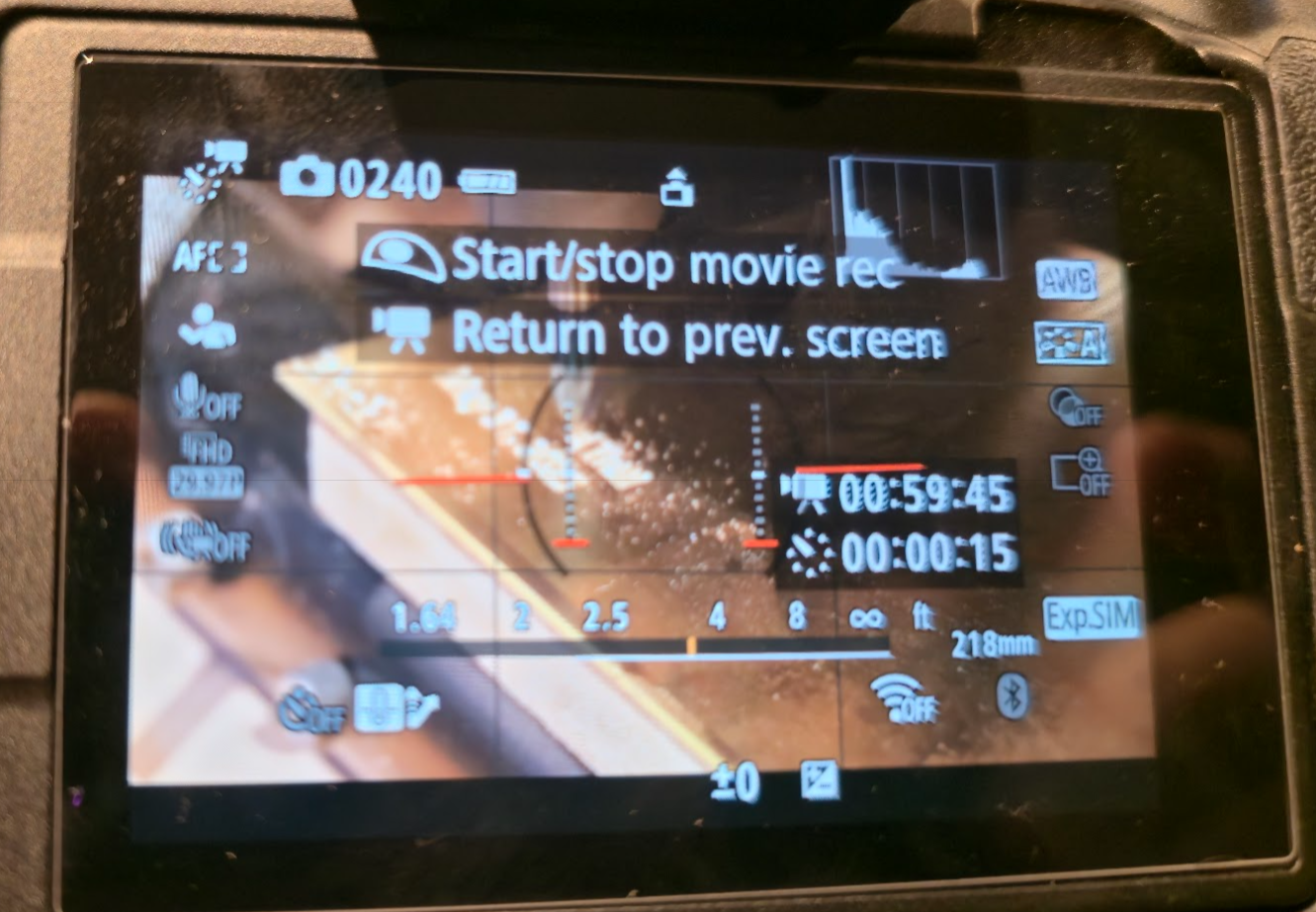
Capturing the subtle dance of clouds across the sky, the vibrant pulse of a city street, or the slow process of a long CNC carve is achievable and straightforward with the Canon R50. This mirrorless camera offers two primary methods for creating captivating timelapse videos: a user-friendly Timelapse Movie mode and a more versatile Interval Timer function.
Method 1: The Simple Path with Timelapse Movie Mode
For a streamlined and efficient way to create a timelapse, the Canon R50's dedicated Timelapse Movie mode is the perfect choice. This mode automatically captures a sequence of still images at a set interval and then compiles them into a ready-to-share video file, all within the camera.
Here's a step-by-step guide to get you started:
- Enter Movie Mode: Rotate the mode dial on the top of your camera to the movie icon.
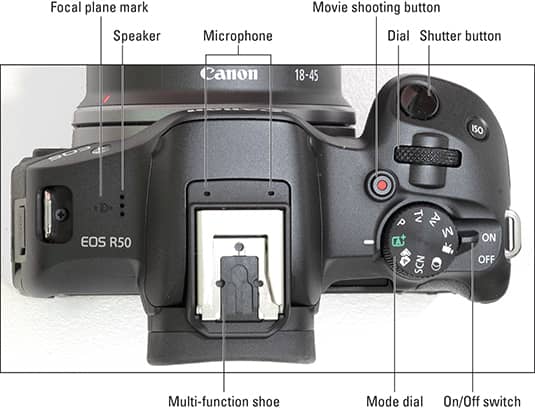
Image Source - Access the Menu: Press the
MENUbutton on the back of the camera.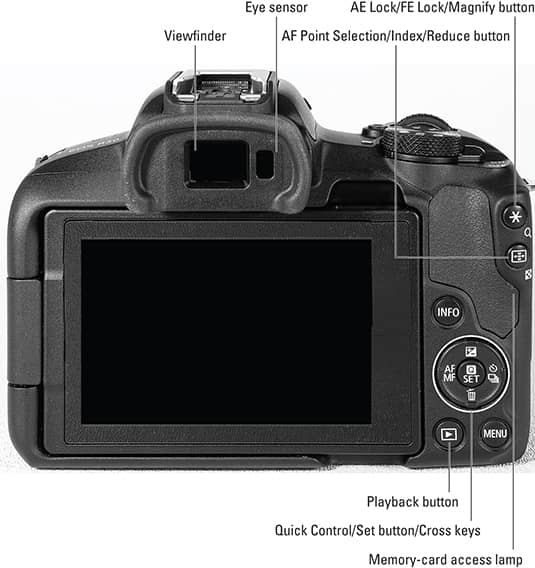 Image Source
 - Navigate to Timelapse Settings: In the red "Shooting" menu (the camera icon), navigate to the fourth tab. Here you will find the "Time-lapse movie" option.
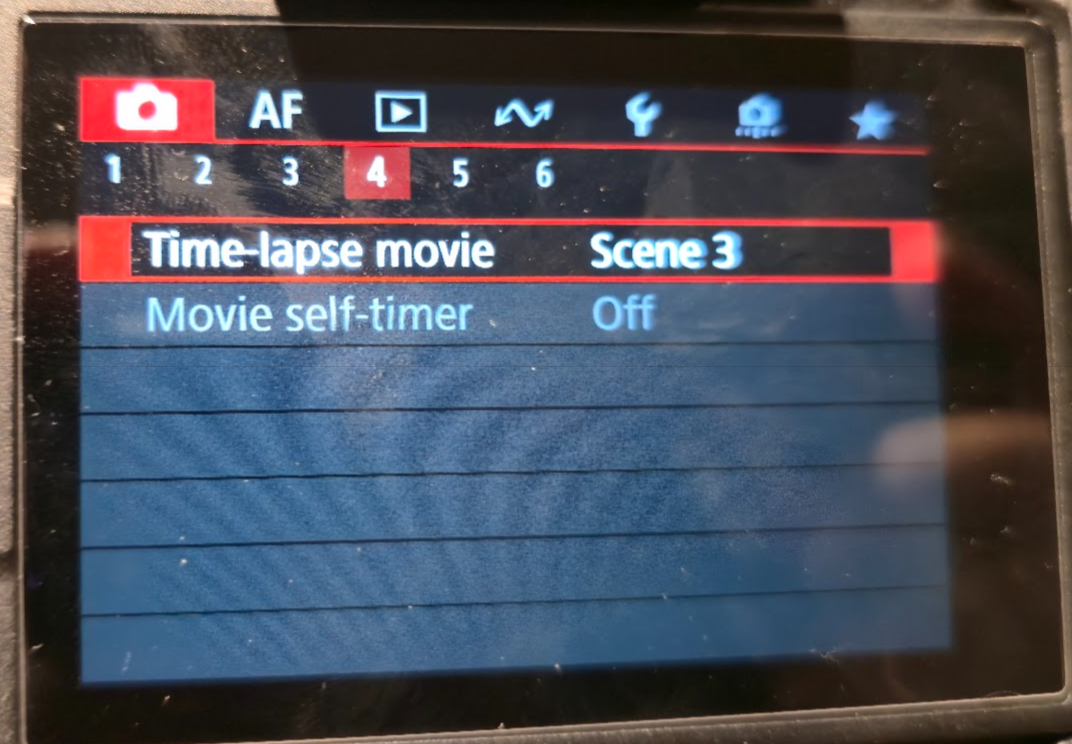
- Enable Timelapse Movie: Select "Time-lapse movie" and choose between 4K or Full HD resolution for your final video.
- Choose a Scene Mode or Go Custom:
- Scene Modes: The R50 offers pre-configured scene modes like "Moving subjects," "Slowly changing subjects," and "For scenes with slowly changing brightness." These are great starting points for common timelapse scenarios.
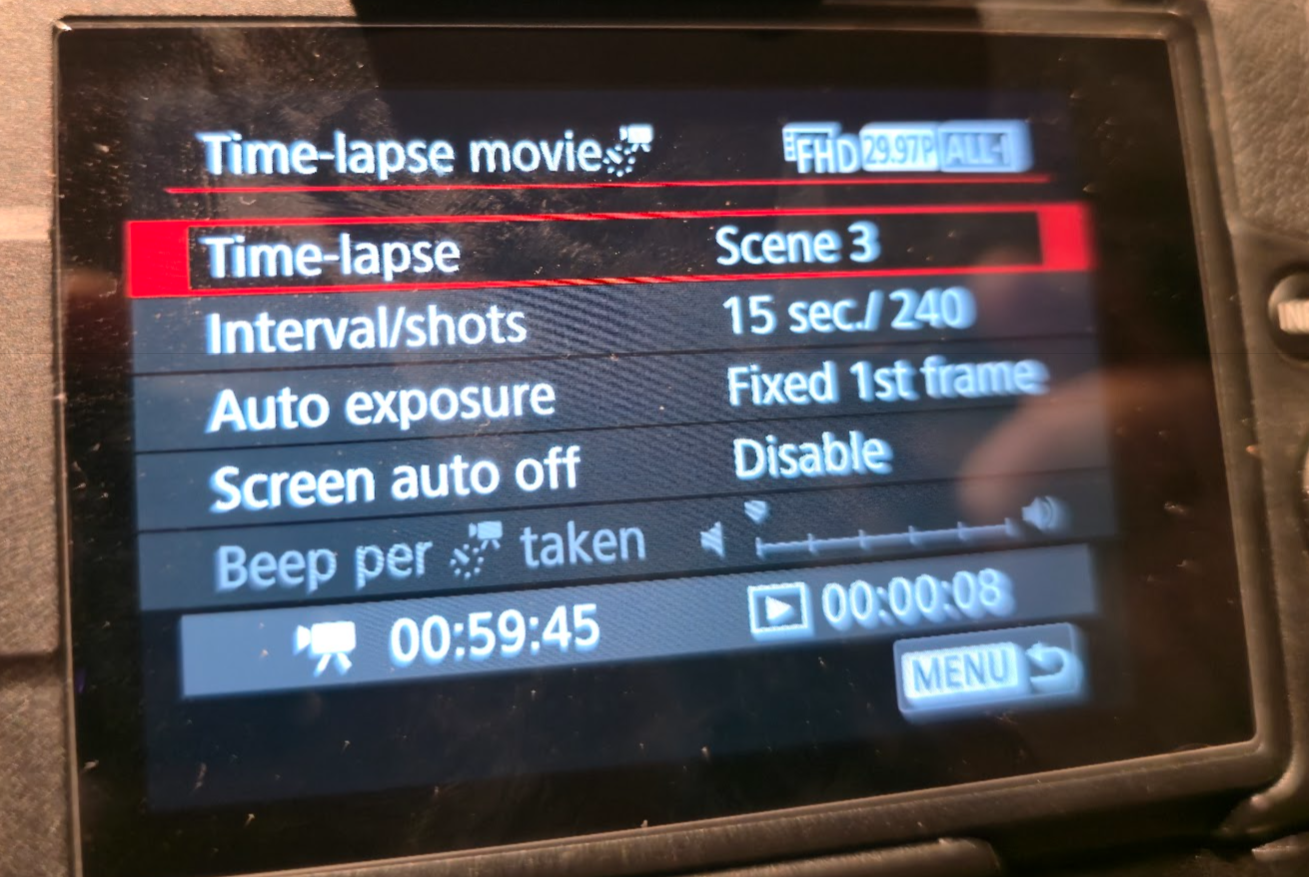
- Custom: For greater creative control, select "Custom." This will allow you to manually set the interval between shots and the total number of photos to be taken.
- Set the Interval and Number of Shots (Custom Mode):
- Interval: This determines the time between each photo. A shorter interval (e.g., 1-3 seconds) is ideal for fast-moving subjects like city traffic. A longer interval (e.g., 10-30 seconds or more) is better for slower processes like a sunrise or moving clouds.
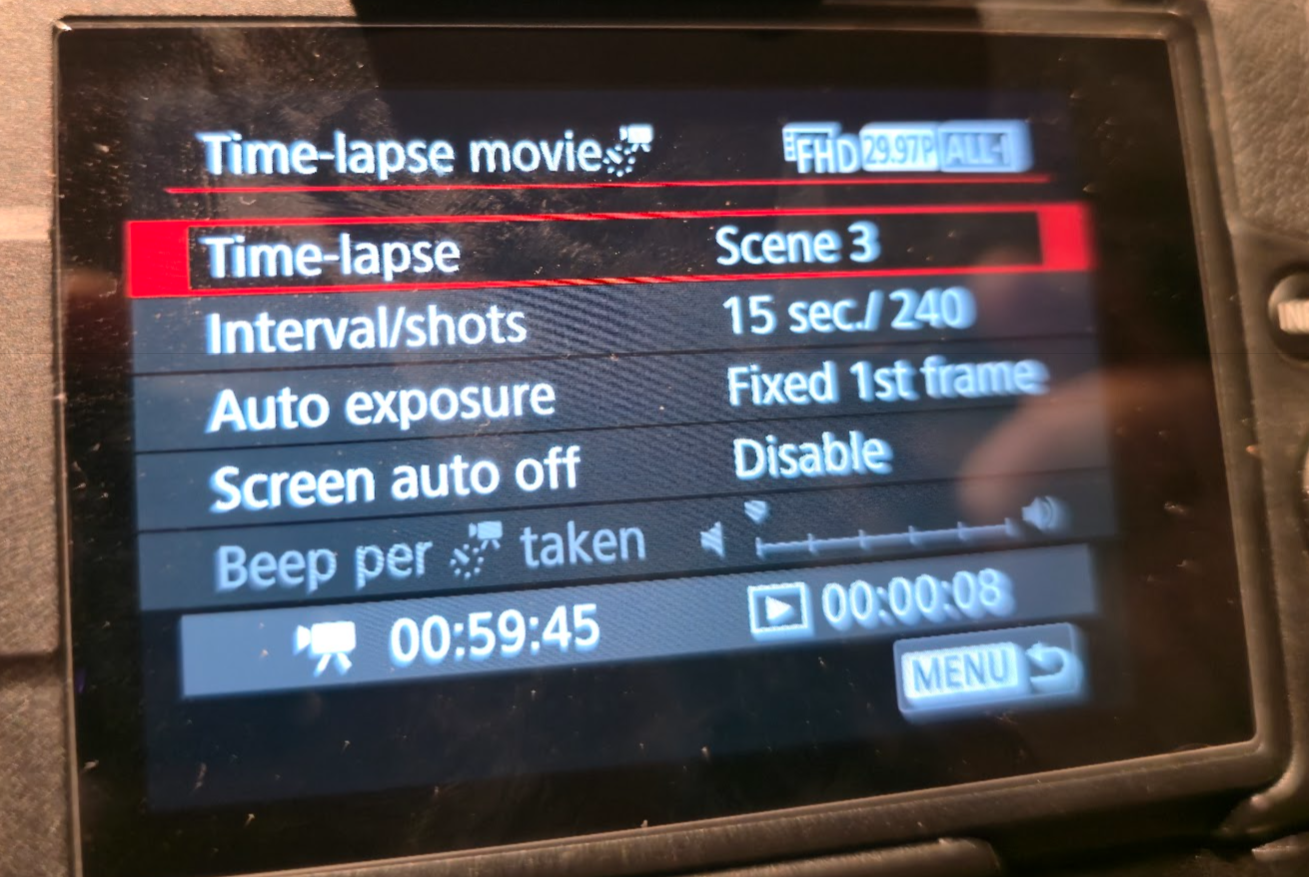
- Number of Shots: This will determine the final length of your timelapse video. For a standard video playback of 30 frames per second, you'll need 300 shots for a 10-second video. The camera will conveniently display the required shooting time and the final playback time as you adjust these settings.
- Configure Auto Exposure (AE):
- Fixed 1st frame: This is a good option for consistent lighting conditions. The camera will set the exposure based on the first shot and maintain it throughout the sequence.
- Each frame: This setting is suitable for scenes with changing light, such as a sunrise or sunset. The camera will adjust the exposure for each individual shot.
- Start Shooting: Once your settings are configured, press the shutter button to begin the timelapse sequence. The camera will automatically stop once the designated number of shots has been captured.